Create an account and sign in
Sign up as a customer or as a runner, confirm your email address and sign in. It takes about two minutes.
Roles that can do this
- Customer
- Runner
Steps
Open the sign-up page
On the Runners Network website, open the sign-in page and choose Sign up under the form. The page is called Create your account.
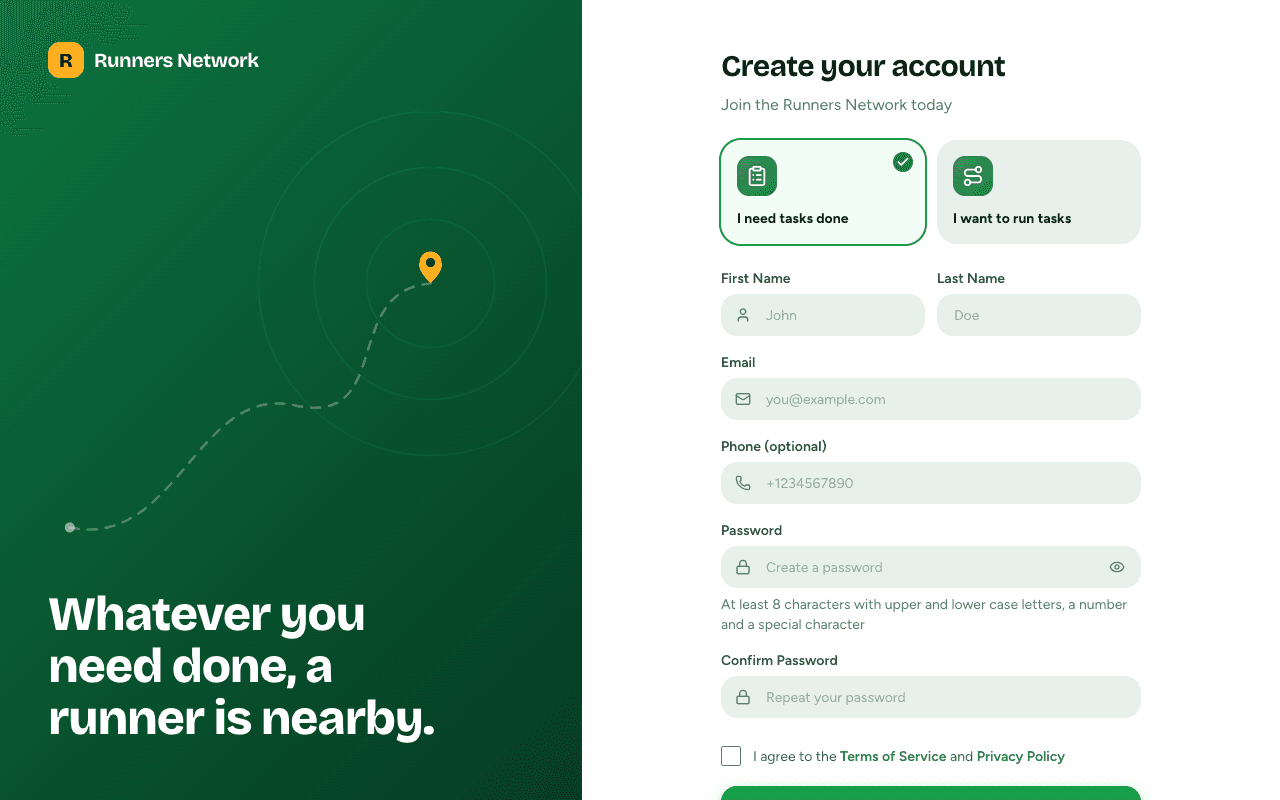
The sign-up page, with the two account types at the top. Choose your account type
Pick I need tasks done to hire runners (a customer account), or I want to run tasks to carry out tasks and earn (a runner account). A runner account also asks for your date of birth, nationality and country of residence.
Fill in your details
Enter your first and last name, your email address and, if you like, a phone number in international format (for example +263…). Choose a password of at least 8 characters with upper and lower case letters, a number and a special character, and type it again.
Create the account
Tick the box to agree to the Terms of Service and Privacy Policy, then press Create Account (or Apply as Runner). You are signed in and taken to your dashboard.
Confirm your email address
We send you an email with a verification link. Open it to see Email verified!. If it did not arrive, customers can ask for a new one under Account Status on the Profile page (Send link); in the mobile app, tap Verify your email on the Profile screen.
Sign in next time
On the sign-in page (Welcome back), enter your email and password and press Sign In. If your account has two-factor sign-in, you are asked for a code next.
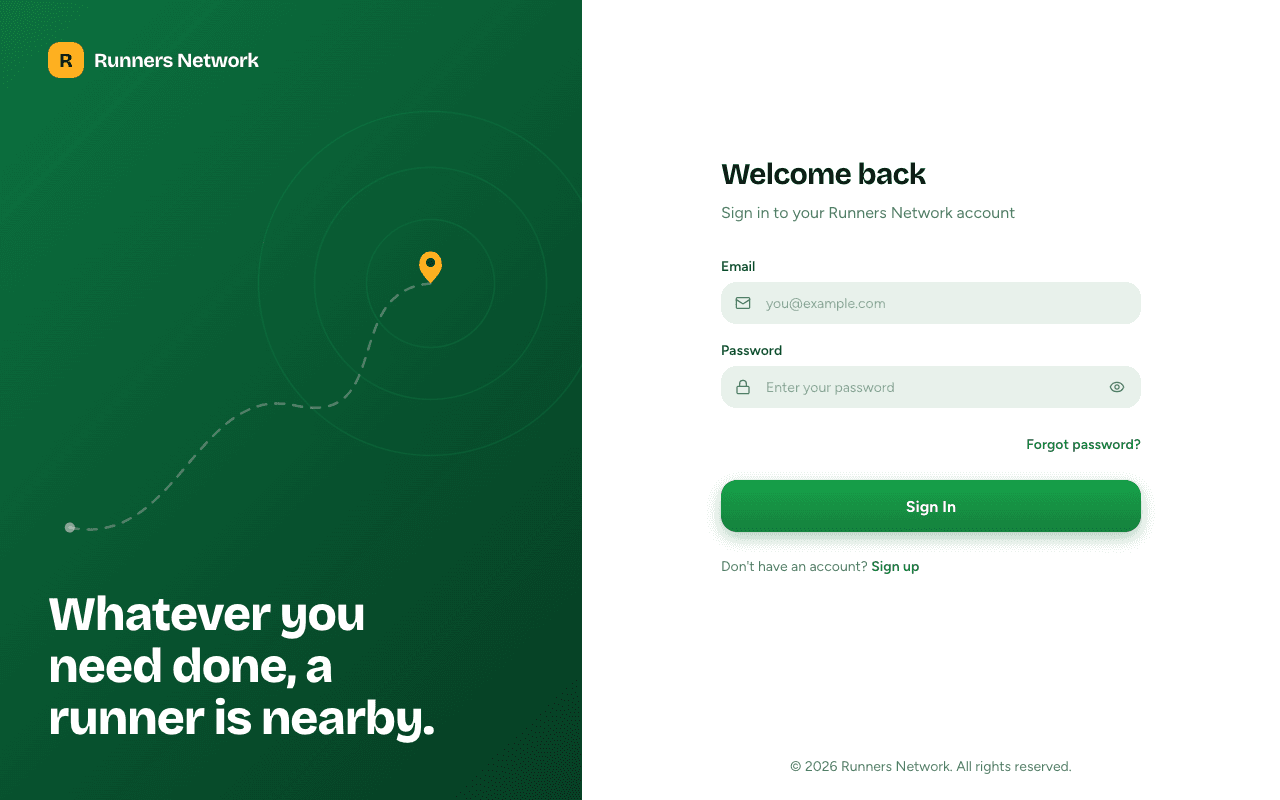
The sign-in page. If you forget your password
Choose Forgot password? on the sign-in page, enter your email address and press Reset Password. Follow the link in the email to choose a new password.
Tips
- Choose the account type with care: it cannot be switched later from the app.
- Verify your email early. Email codes for two-factor sign-in are only sent to a confirmed address.
- If the site shows Continue with Orderbook, you can use your Orderbook account instead of a password.