Set up two-factor sign-in
Add a second step to your sign-in: a code from an authenticator app, a backup code, or a code sent to your email.
Roles that can do this
- Customer
- Runner
- Verifier
- Superadmin
Steps
Open the security settings
Open Settings from the menu. Find the Two-Factor Authentication card; it shows Disabled until you set it up. Press Enable.
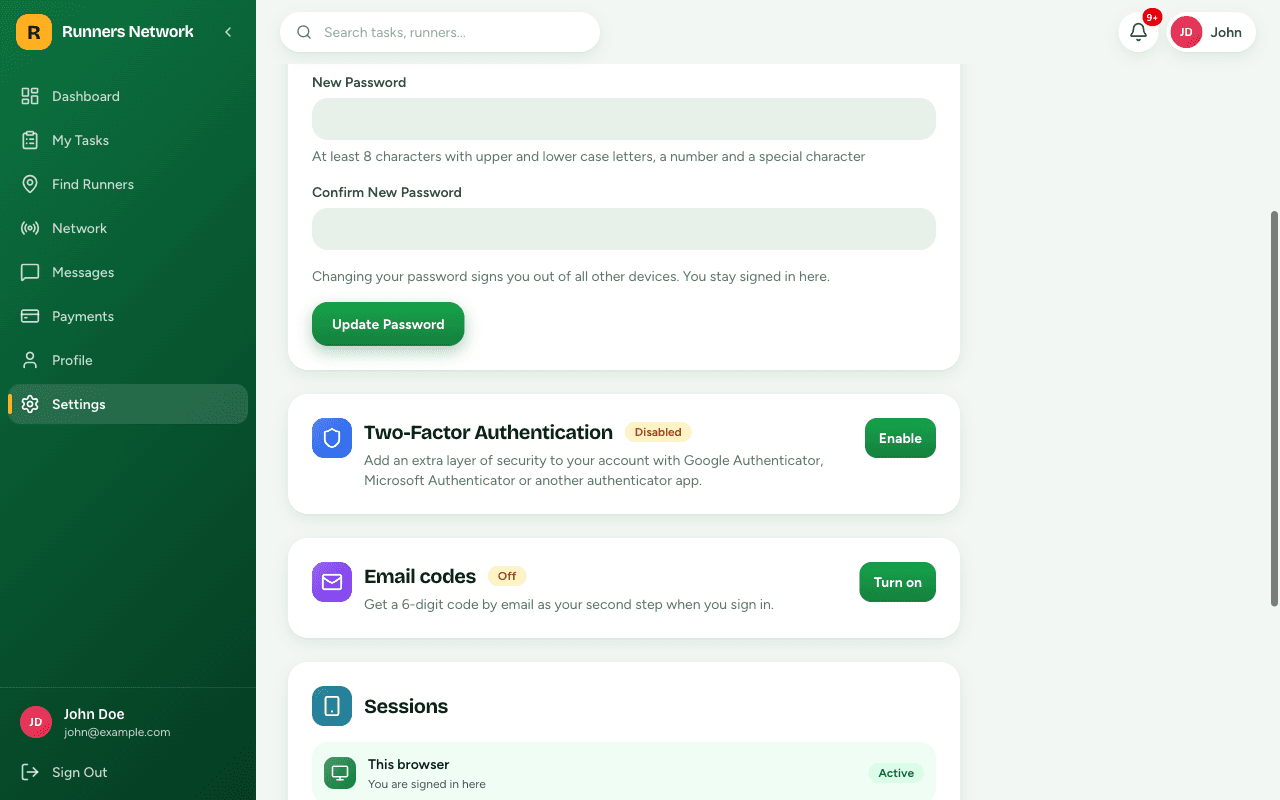
The Two-Factor Authentication card in Settings. Add the account to your authenticator app
Scan the QR code with Google Authenticator, Microsoft Authenticator or any other authenticator app. If you cannot scan it, press Copy key and type the key into the app, or, on a phone, use the link to open your authenticator app.
Confirm with a code
Type the 6-digit code the app shows into 6-digit code from the app and press Turn on.
Save your backup codes
You now see eight backup codes. Each one works once, for the day you do not have your phone. Copy them somewhere safe and press I have saved my codes.
Sign in with the second step
From now on, after your password you see Two-factor authentication. Choose where your code comes from (Authenticator app, Backup code or Email me a code), enter it and press Verify.
Add email codes as well (optional)
The Email codes card in Settings lets you receive a 6-digit code by email as your second step. Press Turn on and enter the code we send you. It needs a verified email address, and each code is valid for 10 minutes.
In the mobile app
Open Profile, then Security, and tap Set Up Two-Factor Authentication. On the phone you can tap Open in authenticator app instead of scanning a code.
Tips
- Verifiers and superadmins must set up an authenticator app before they can do anything else; the admin dashboard takes them to its setup page.
- The admin dashboard words a few labels differently from the web app. On its setup page (Set up two-factor authentication), scan the code, enter it and press Turn on two-factor authentication. In its Settings, press Set Up Two-Factor Authentication, enter the code and press Enable. In both places, finish with I have saved these codes.
- After five wrong codes within 15 minutes, the second step locks for 15 minutes. The sign-in step itself also expires after 10 minutes; then simply sign in again.
- Lost your backup codes? Press New backup codes; it replaces all the old ones.
- To turn the authenticator off, press Disable and confirm with your password and a code.