Manage users and tasks
For superadmins: find any account or task, look at its details, and suspend or reactivate users or cancel tasks when needed.
Roles that can do this
- Superadmin
Steps
Find a user
In the admin dashboard choose Users. User Management has tabs for Customers, Runners, Verifiers and Admins, a status filter and a search box.
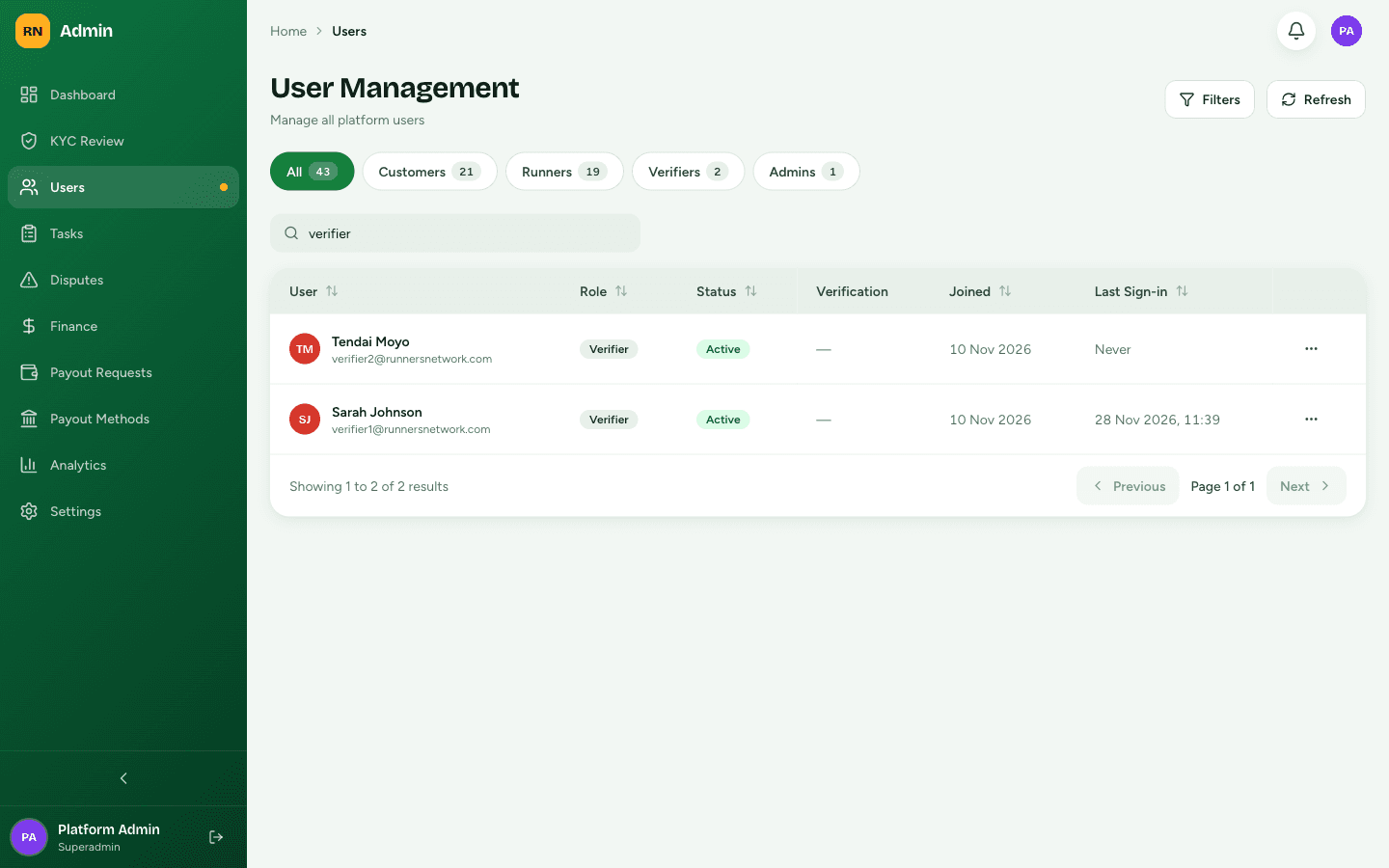
The users list. Look at the account
Open a row’s menu and choose View Details for the profile, verification, last sign-in and ratings.
Suspend, ban or reactivate
Press Suspend User or Ban User to stop the person signing in, or Reactivate to restore access. A reason is optional; it is not shown to the user.
Find a task
Choose Tasks. Task Management lists every task, with filters for category, priority, status and budget. Open one for its Task Details: people, payment, evidence, ratings and status timeline, with Open dispute when there is one.
Cancel a task if needed
Under Admin Actions, press Cancel Task and confirm. The customer, and the runner if there is one, are notified, and any payment held in escrow is refunded to the customer in full.
Tips
- The status of a superadmin cannot be changed, and an account its owner deleted stays deleted.
- Conversations between a customer and a runner are private, even to superadmins.