Notifications
Stay up to date with your tasks, messages, payments, verification and disputes, and choose how you hear about each.
Roles that can do this
- Customer
- Runner
Steps
See what is new
The bell at the top of every page shows how many notifications are unread. Press it for the latest ones, or choose See all notifications.
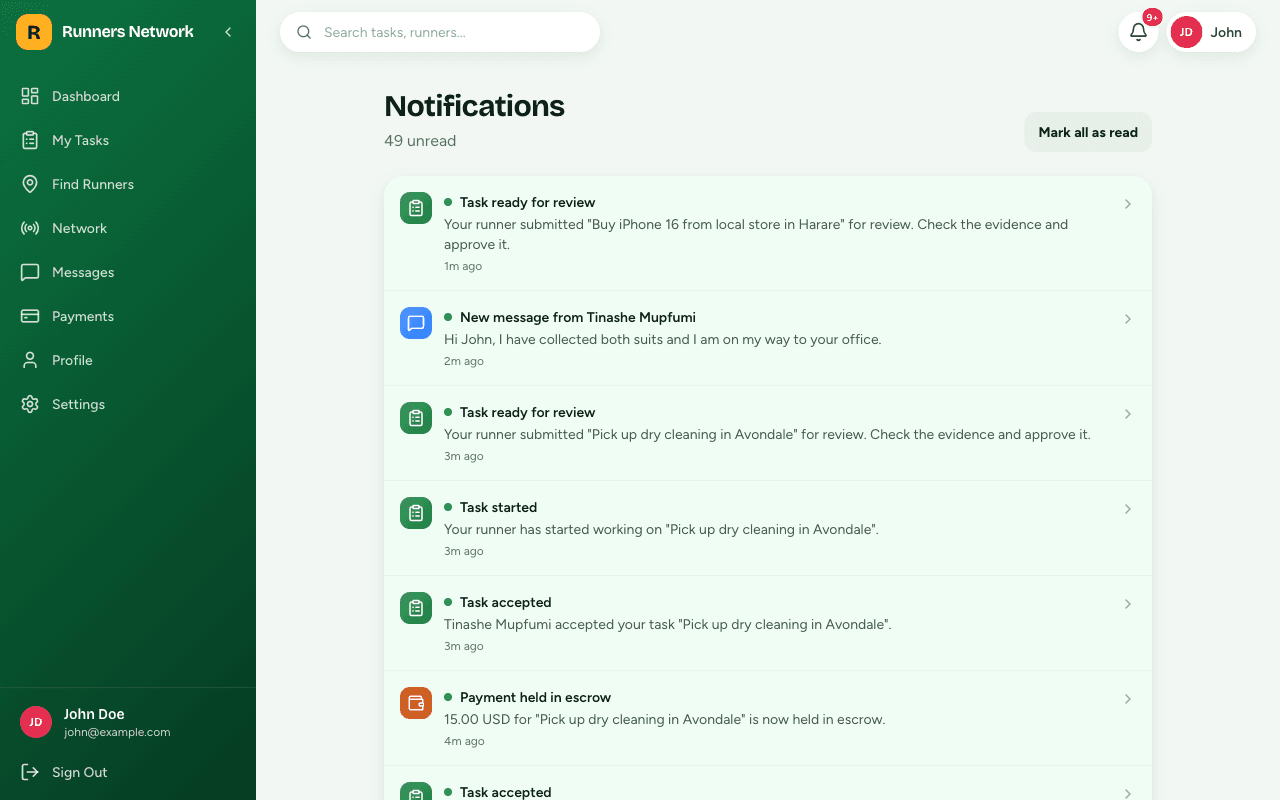
The Notifications page. Open or clear notifications
Select a notification to go to the task or conversation it is about. Press Mark all as read to clear the count.
Know what you are told about
You hear about task updates (offers, assignments, status changes), new messages, payments (escrow, releases, refunds, payouts), verification results, disputes, and security and account notices.
Choose your preferences
Customers open Profile and the Notification Preferences tab, where each kind of event has a switch for In-app, Email, SMS and Push. Changes are saved as you make them. In the mobile app, open Profile and Notification Settings.
Tips
- In-app notifications appear here and in your Network timeline unless you switch them off; whether email, SMS and push messages are sent depends on how the platform is set up.
- Push notifications are for the mobile app.