The Network feed and statuses
A shared timeline for your area: runners talk to each other, new tasks appear as cards, and runners share statuses that last 24 hours.
Roles that can do this
- Customer
- Runner
Steps
Open the Network
Choose Network in the menu. The statuses of people nearby are at the top, the timeline below. Your area is a grid square a quarter of a degree wide plus the eight squares around it; only the square is kept, never your exact position.
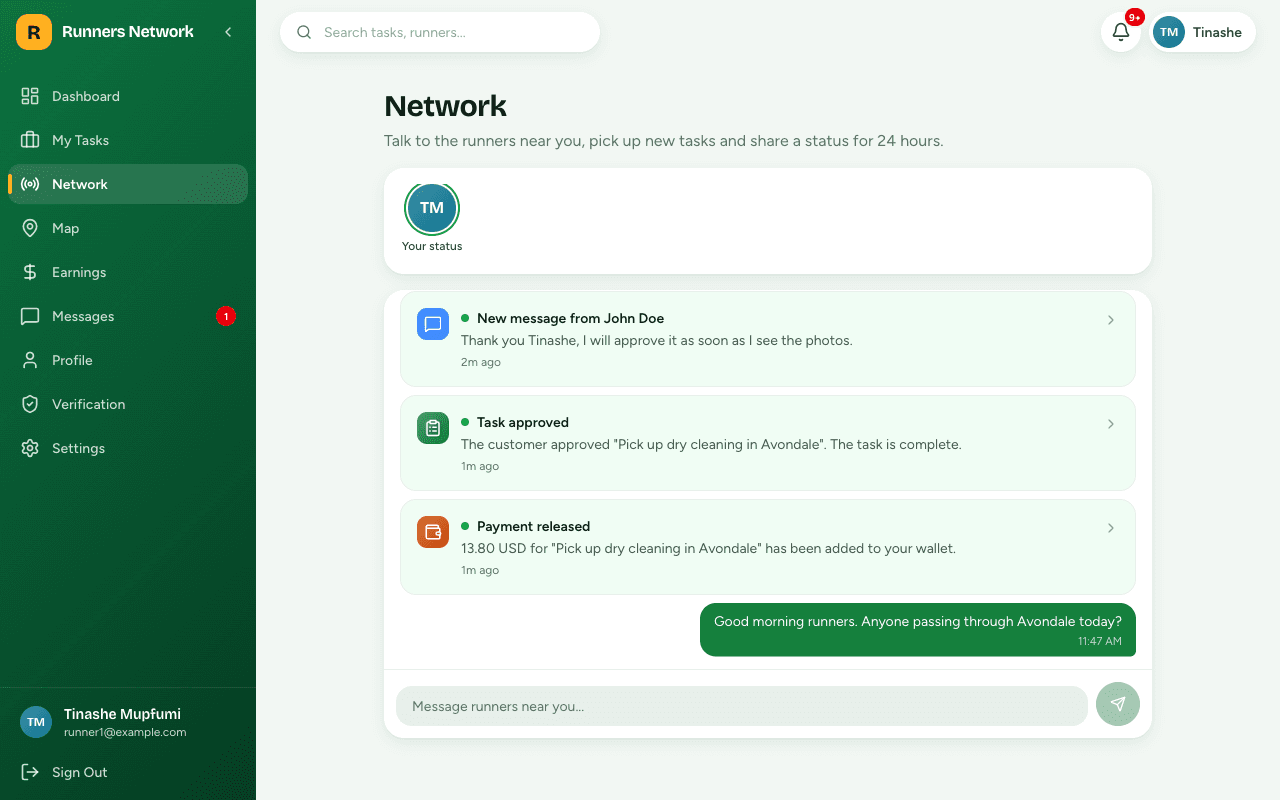
The Network: statuses and the timeline. Runners: join and talk
Press Share your location to join the runners near you. Then type into Message runners near you... and press Send. Your notifications appear in the same timeline.
Runners: pick up tasks from the feed
New tasks published nearby appear as cards in the timeline. Press Accept on a card and confirm with Accept in Accept this task? to take it at the listed price.
Runners: post a status
Press Add a status. In New status choose Text (with a background colour) or Photo, write or pick it, and press Post status. People near you see it for 24 hours. Open your status to see who has seen it, or to delete it.
Customers: what you see
Customers see the statuses of runners nearby and updates on their own tasks. Press Use my location to see tasks near me, and type into What do you need done? to start a new task with those words.
Tips
- Only runners can post messages and statuses in the Network.
- In the mobile app, the Network is the chat window on the home screen.