Pay with escrow
Fund a task into escrow, so the runner knows the money is there, and release it only when you are happy with the work.
Roles that can do this
- Customer
Steps
Add a payment method
Open Payments, then the Payment Methods tab, and press Add Payment Method. Choose the Type (for example Mobile money or Debit card), give it a name such as “EcoCash” if you like, and press Add Method. Do not enter card or account numbers.
Open the task and choose Pay into Escrow
On a task that is published or has a runner assigned, the Actions card shows Pay into Escrow. Press it.
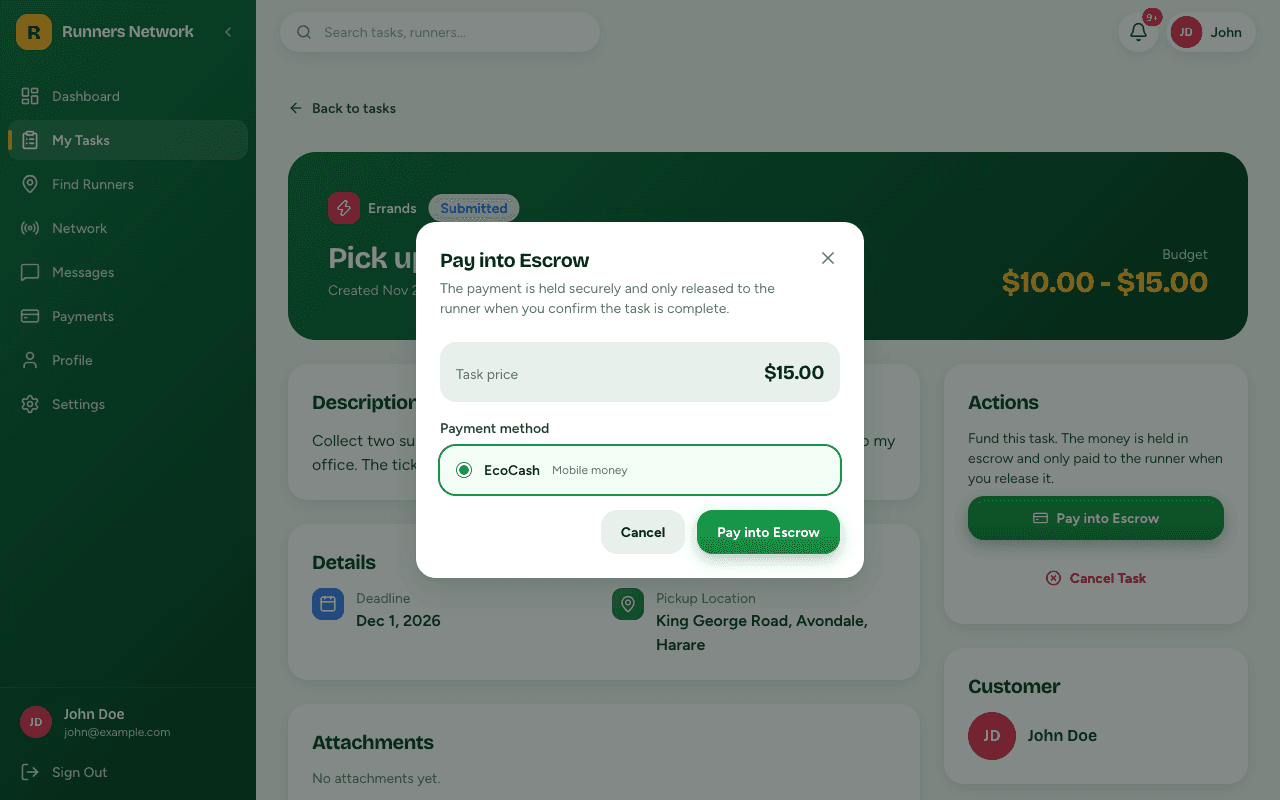
Paying into escrow from the task page. Confirm the payment
Check the Task price (an urgent task adds a surcharge), choose a payment method and press Pay into Escrow. The Payment card on the task now says Held in escrow and shows the platform fee, what the runner receives and a reference.
Approve the work
When the runner submits the task for review, check their evidence and press Approve Task.
Release the payment
Press Release Payment. The runner’s share goes to their wallet and the payment shows Released to runner.
See your payments
The Payment History tab of Payments lists every payment with its status: In escrow, Released, Refunded and so on.
Tips
- Runners Network does not ask for or keep card numbers. A payment method is a named record of how you pay; paying into escrow records the payment against it.
- The price paid is the agreed price, or else your maximum budget, or else your minimum budget. The platform fee (12%, or 8% for a Top Runner) comes out of the runner’s share, not on top.
- Cancelling a task refunds the escrow. If a runner was already assigned or had started, a cancellation fee of 20% is kept.
- If a task is cancelled or expired but its payment is still held, Refund Payment appears on the task.