Track a task and confirm it is done
Follow your task from published to completed, check the runner’s evidence, and approve it.
Roles that can do this
- Customer
Steps
Open the task
Open My Tasks, filter by status if you like, and select the task. The green panel at the top shows its status and its budget or agreed price.
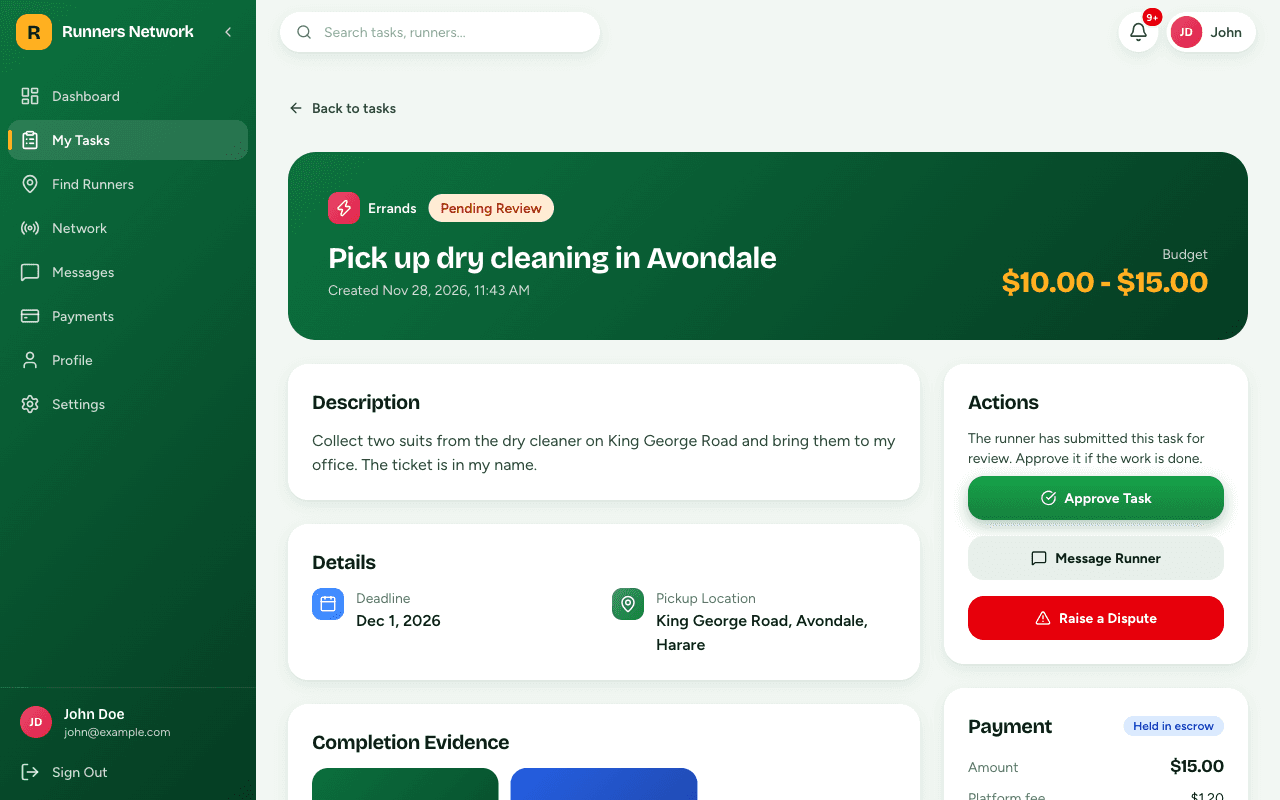
A task page: status, details, actions and payment. Follow the status
A task moves from Draft to Submitted (published), Assigned, In Progress, Pending Review and Completed. The Status Timeline card lists every change with its time.
Know when to review
When the runner submits the work, you get a notification and your dashboard shows Tasks Need Review with a Review now link.
Check the evidence
Look at the Completion Evidence card: the runner’s photos and notes. Use Message Runner if you have a question.
Approve the task
If the work is done, press Approve Task. The task becomes Completed; then press Release Payment to pay the runner.
If something is wrong
While the task is Pending Review, press Raise a Dispute instead of approving.
Tips
- You can cancel with Cancel Task at any point before the task is submitted for review.
- After approving, rate the runner with Rate Runner; it helps others choose.