Chat with a runner or customer
Talk to the other person on a task in real time, with text, photos, voice messages and your location.
Roles that can do this
- Customer
- Runner
Steps
Start a conversation
On a task page press Message Runner (or Message Customer if you are the runner). On the map, a runner’s card has a Message button. A runner can also message the customer about a published task before accepting it.
Open your conversations
Choose Messages in the menu. Your conversations are listed on the side; select one to open it. The number beside Messages counts unread messages.
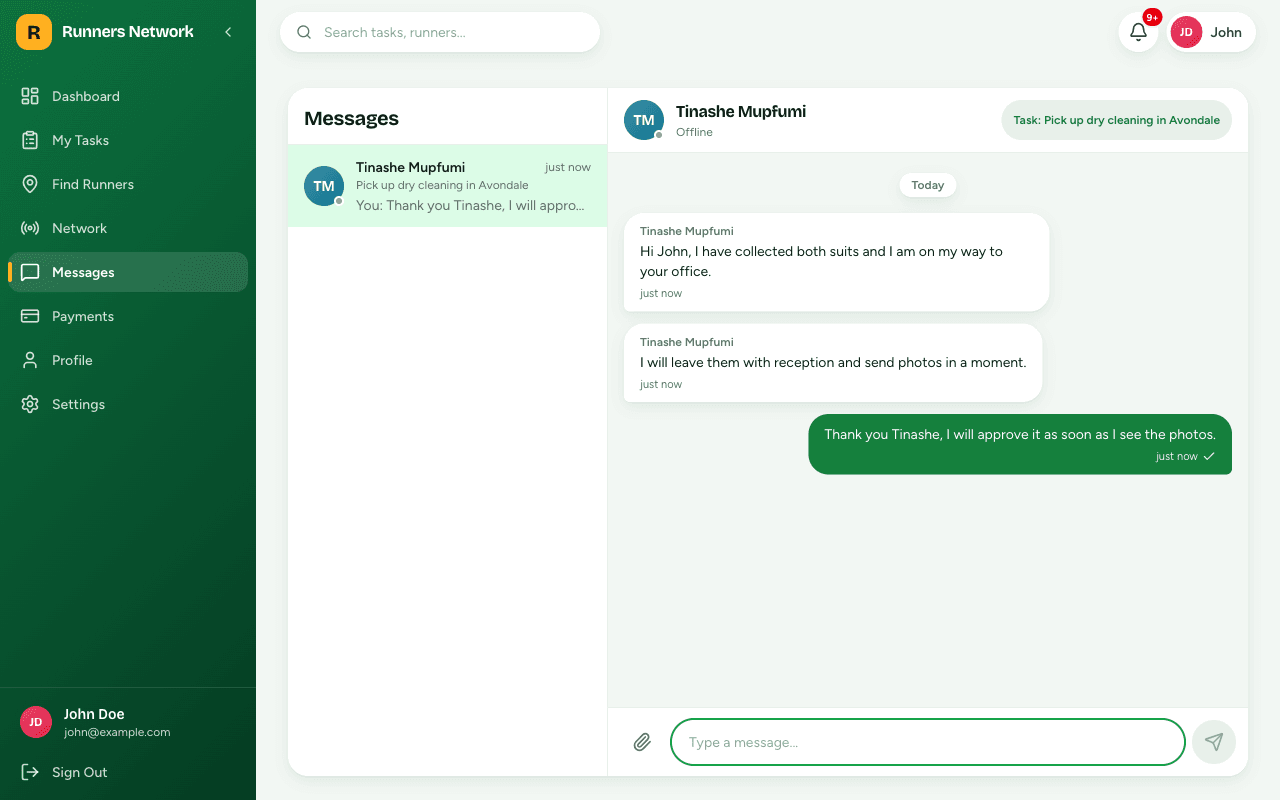
A conversation in Messages. Send a message
Type into Type a message... and press Enter, or the send button.
Send a photo, voice message or location
Press the attach button and choose Upload Image or Audio, Share Location or Voice Message. Files can be up to 10 MB.
See what was read
One tick means sent, two ticks mean read. The top of the conversation shows whether the other person is Online or Offline.
Tips
- Conversations are private to the two people in them; staff cannot read them.
- Keep the details of a task in the chat, so they are there if you ever need to raise a dispute.