Post a task
Describe what you need, where, by when and for how much, then publish it so runners can see and accept it.
Roles that can do this
- Customer
Steps
Start a new task
Press New Task on your dashboard or on My Tasks. The page Create a New Task walks you through five short steps: Category, Details, Location, Budget and Review.
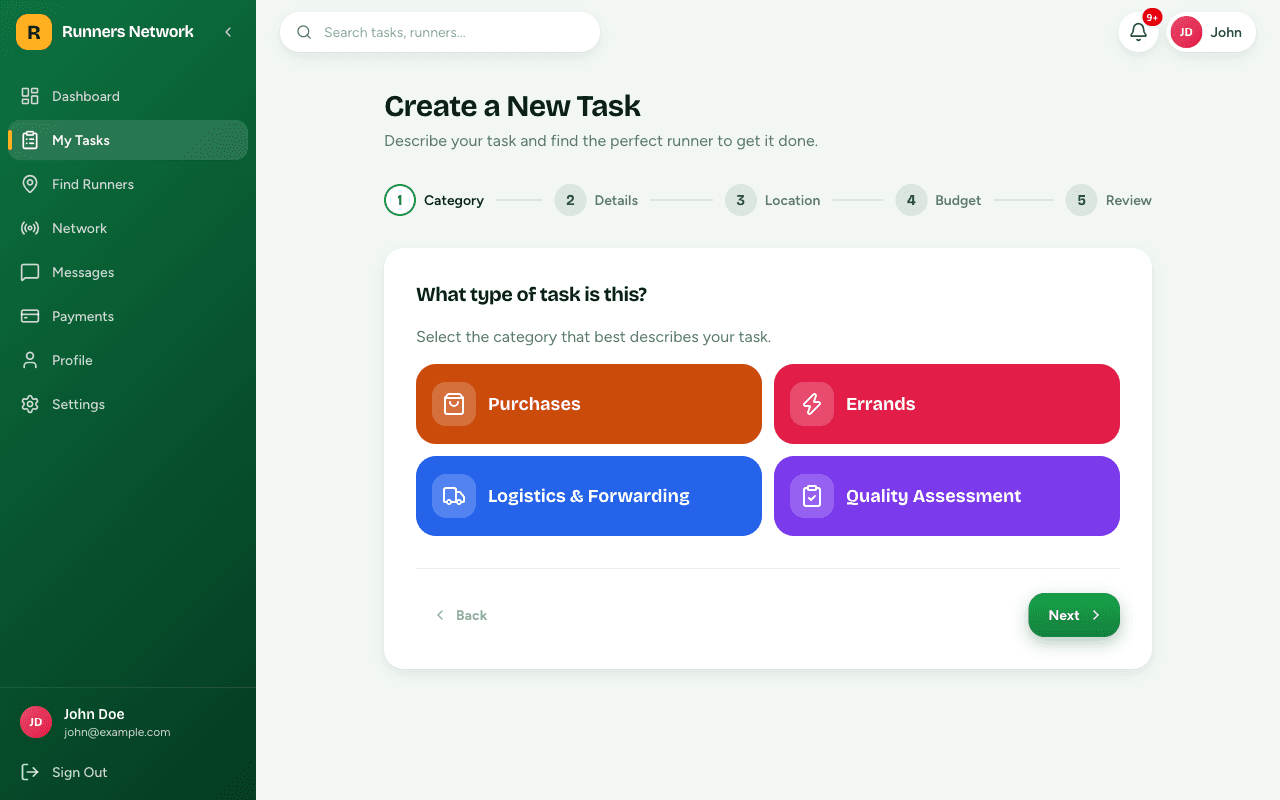
The first step of the task form: choosing a category. Choose a category
Pick Purchases, Errands, Logistics & Forwarding or Quality Assessment, then press Next.
Describe the task
Give it a Title (at least 5 characters) and a Description (at least 20). Choose a Priority: Standard, Urgent (a surcharge applies) or Scheduled for a set date. Add Special Instructions (optional) for the runner.
Say where
Enter the Pickup / Task Location and, if something must be taken somewhere, the Delivery Location (optional). You can pick one of your saved addresses instead of typing. A scheduled task also needs its Scheduled Date.
Set the budget and deadline
Enter a Minimum Budget and, if you like, a Maximum Budget, pick the currency, and choose a Deadline: the task must be done by the end of that day.
Review and publish
Check the summary card, then press Publish Task so runners can see it, or Save as Draft to publish later from the task page with Publish Task.
Tips
- A saved address carries its exact place on the map, so the task shows up for runners nearby on the map and in the Network. Runners see only the approximate area until one of them is assigned.
- Urgent tasks add a 5% surcharge to the price.
- On the task page you can add up to 10 files with Add Attachment until the task is submitted for review.
- In the Network, type what you need into What do you need done? and the task form opens with your words already in it.