Accept and complete tasks
Find open tasks, accept one or make a counter offer, do the work and submit it with photo evidence.
Roles that can do this
- Runner
Steps
Find open tasks
Open My Tasks and the Available tab. Open tasks also appear on your Runner Dashboard under Available Tasks, on the map and as cards in the Network.
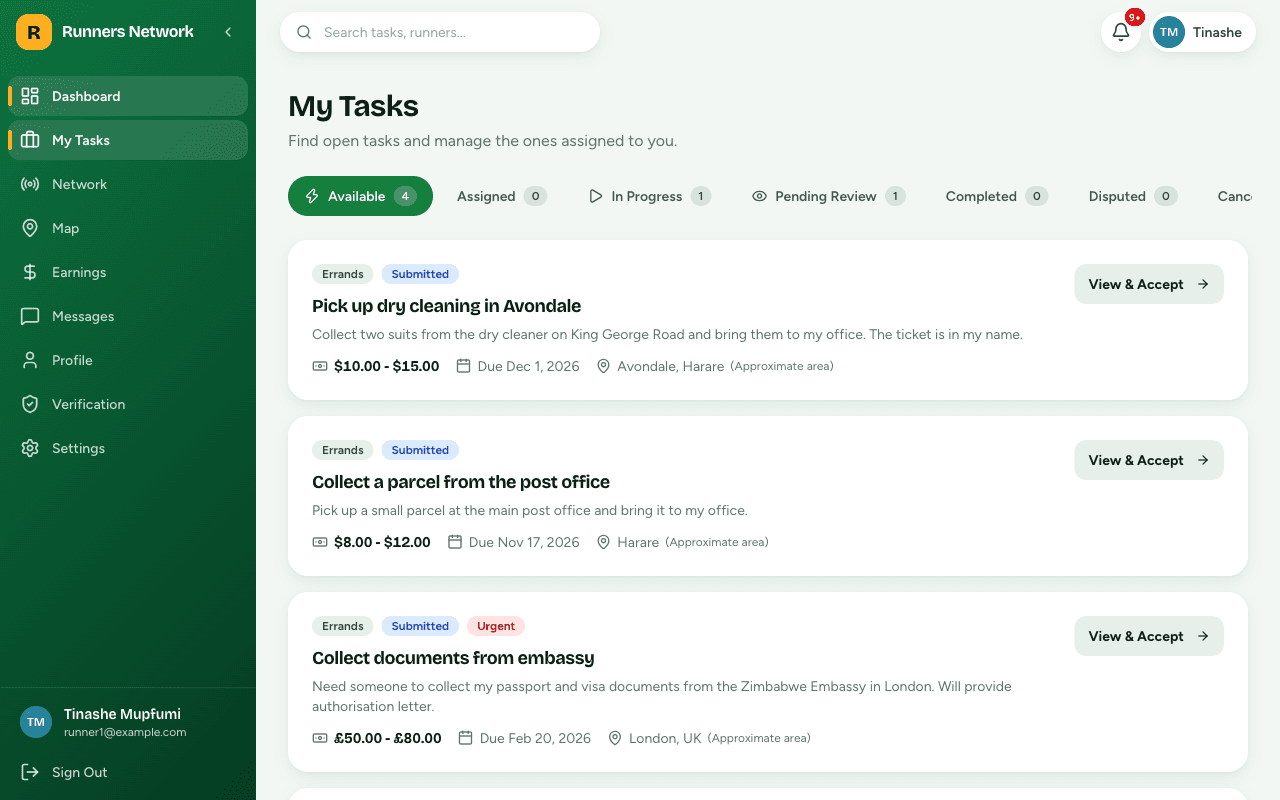
Available tasks on My Tasks. Accept the task or make an offer
Press View & Accept. On the task page press Accept for the listed price, or Make a Counter Offer to propose your own price with a note and Send Counter Offer. The customer accepts or declines it.
Start the task
Once you are assigned, press Start Task. If the page says The customer has not funded this task yet., you may want to wait until it is paid into escrow.
Keep the customer informed
The full address is shown once you are assigned. Use Message Customer for questions and updates.
Submit for review
When you are done, press Submit for Review. Add Evidence photos (up to 20) and Notes for the customer (optional), then press Submit for Review.
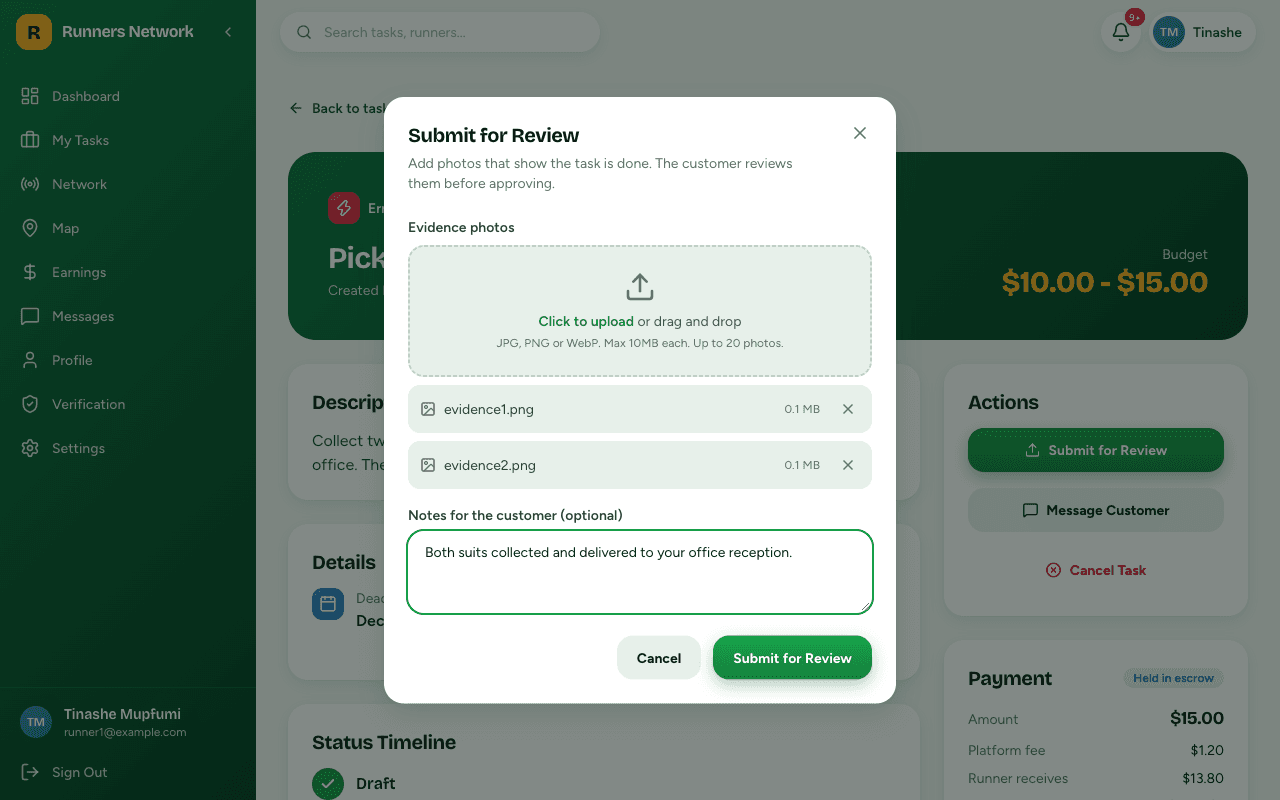
Submitting a task with photo evidence. Get paid
The task now shows Waiting for the customer to review your work. When the customer approves it and releases the payment, your share is added to your wallet on Earnings.
Tips
- Your verification level limits how many tasks you can have active and how much each can be worth.
- Cancelling a task you accepted counts as a strike on your runner profile, and the customer is refunded.
- Photos protect you: with clear evidence a customer approves faster, and a dispute is easier to decide.