Raise a dispute
If you and the other person cannot agree about a task under review, ask the Runners Network team to decide.
Roles that can do this
- Customer
- Runner
Steps
Check that a dispute is the right step
A dispute can be raised while a task is Pending Review: the runner has submitted it and the customer has not yet approved it. Try Message Runner or Message Customer first; many problems are solved there.
Open the dispute form
On the task page press Raise a Dispute.
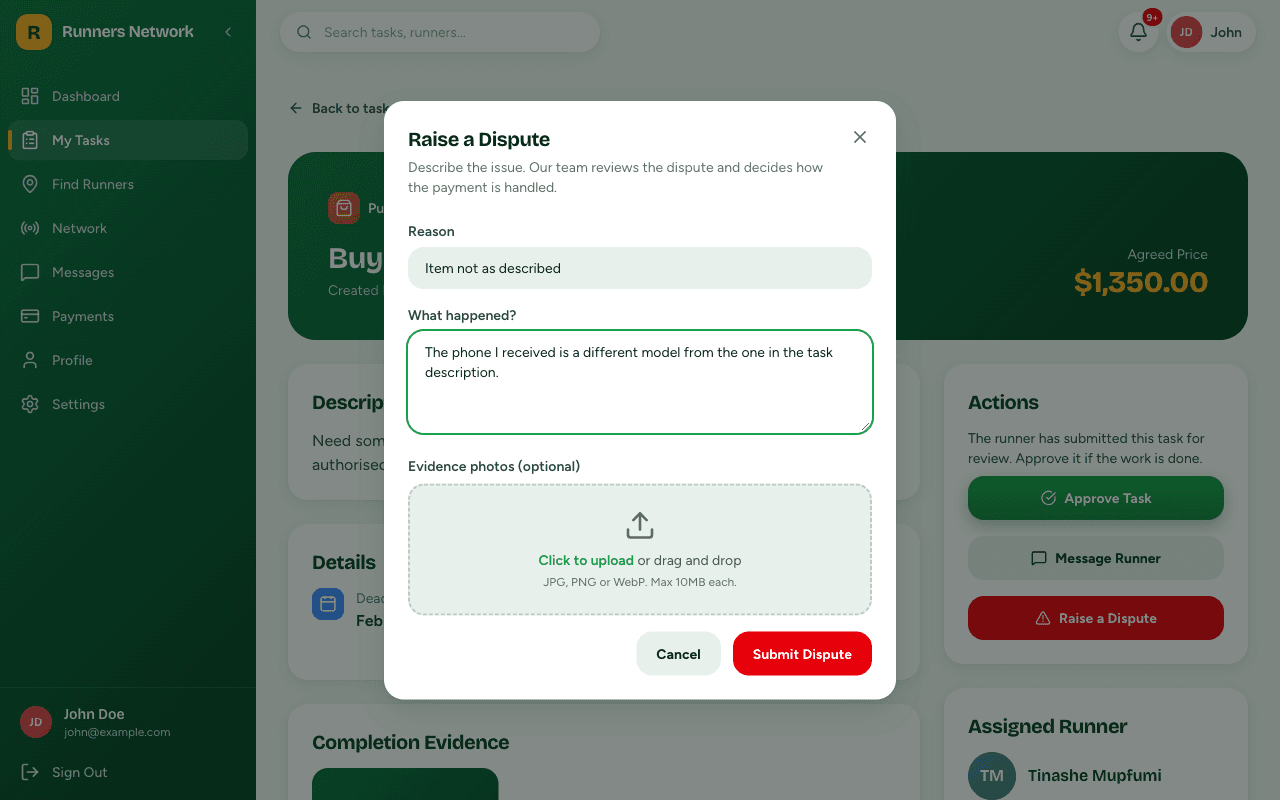
The dispute form. Explain what happened
Give a short Reason (for example “Item not as described”), describe the problem under What happened?, and add Evidence photos (optional), up to 20. Press Submit Dispute.
While the team reviews it
The task becomes Disputed and any payment stays in escrow. The task page shows a Dispute card with its status.
The decision
A superadmin decides: in the runner’s favour (the payment is released to the runner), in the customer’s favour (the customer is refunded), a split (half of the runner’s share goes to the runner, the rest is refunded), or dismissed (the task goes back to review). Both of you are notified, and the resolution appears on the task.
Tips
- Each task can have one dispute, so include everything the first time.
- Runners: the photos you add when you submit a task for review are the best protection in a dispute.
- A decision in the customer’s favour gives the runner a strike.